OpenEmail / Extension guide
Email tracking Chrome extensions: what to check before you choose
An email tracking extension adds signals to messages you send from a supported webmail service. Start with your mail client, the signals you actually need, and the controls you want—not a promise that software can tell whether somebody read your words.
An open is a signal, not a read receipt
Open tracking usually relies on a small remote image in a message. When that image is requested, the tracking service records an event. That request does not prove that a person read, understood, or acted on the email.
Mail proxies, previews and security scanners can generate requests. Image blocking can prevent a signal even when the message is read, while caching can hide later views. Gmail checks external images and limits the information senders can learn from them. Device and location hints may describe a proxy rather than the recipient.
No recorded open is not evidence of non-delivery. Repeated opens are not proof of interest or purchase intent. Use the signals as context for a thoughtful follow-up, not as a verdict about the recipient.
A practical selection checklist
- Mail-client compatibility. Check your exact webmail service and browser. Gmail support does not automatically mean support for Outlook, a phone’s mail app, or desktop email software.
- Open versus click tracking. An image request and a tracked-link request are different events. Decide whether approximate opens are enough or whether you need link-level activity. Even clicks can come from scanners.
- Tracking choices. Look for a visible indicator before sending, a way to disable tracking for individual messages, and clear error states. An extension should never send mail on your behalf without your action.
- Data handling. Read what leaves your browser: subjects, recipients, destination links, message bodies, and connection information are separate categories. Check defaults, optional settings, retention and deletion support.
- Permissions and costs. Review browser permissions and the current plan terms. Check which features are included, what requires payment, and whether a self-hosted option requires you to operate a service.
- Inbound tracking protection. Tracking your outgoing mail and detecting trackers in incoming mail are separate capabilities. If blocking matters to you, verify it explicitly rather than assuming it is included.
How OpenEmail fits
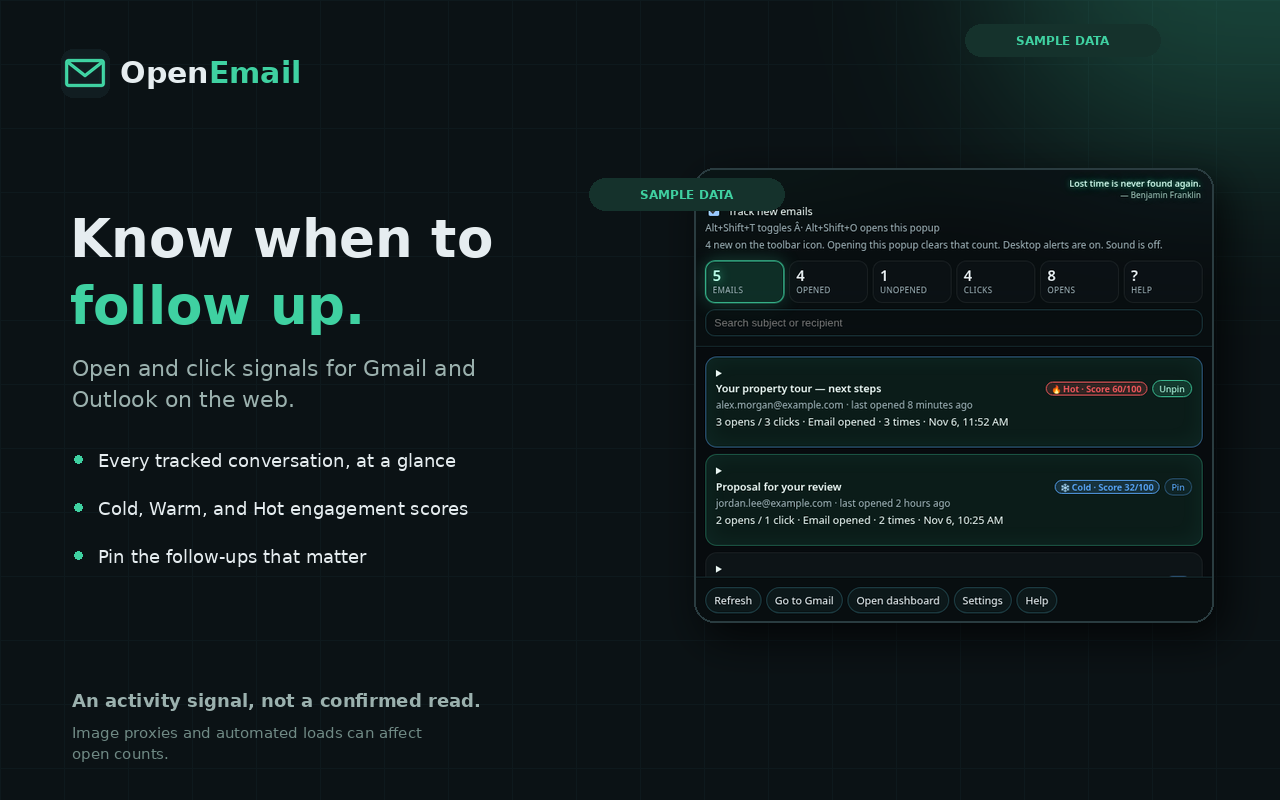
OpenEmail’s homepage presents open tracking for Gmail, a tracking-on indicator next to the subject, and recent activity in the extension popup. It also advertises Outlook.com support and optional click-tracking features. Check the current listing and plan before choosing; this guide is not an independent certification of every advertised feature.
The published privacy policy documents a subject, recipient and link-registration workflow. It states that the extension does not send the email body to the OpenEmail service, and that IP and coarse-location storage are off by default. Local writing tips and optional subject assistance are distinct from sending a full message body to an AI provider.
Read the release-status notice. The policy describes an audited build and flags outstanding work around first-run consent, permission narrowing, recipient notices and account/data deletion. Do not assume those release obligations are complete, or that tracking is automatically compliant with privacy law. Review your use case and obligations before sending tracked mail.
The repository also contains a separate self-hosted OpenSignal implementation. Source availability is not a claim that the public OpenEmail extension ships every self-hosted feature. Keep the product listing, policy and installation requirements separate when comparing options.
Before your first tracked message
Confirm your settings, review the recipient notice appropriate to your situation, and send a test message to an account you control. Check that disabling tracking works. Treat the result as a check of your setup—not a guarantee that all recipients’ mail software will behave the same way.
Sources and further reading
- Google Gmail Help: turn images on or off — image checks, sender visibility and suspicious messages.
- OpenEmail privacy policy — documented data handling and release limitations.
- OpenEmail homepage — advertised features and current plan information.